
Set up your FRITZ!Box 7530 for WorldNet fibre using a web browser. Menu names may vary with your FRITZ!OS version.
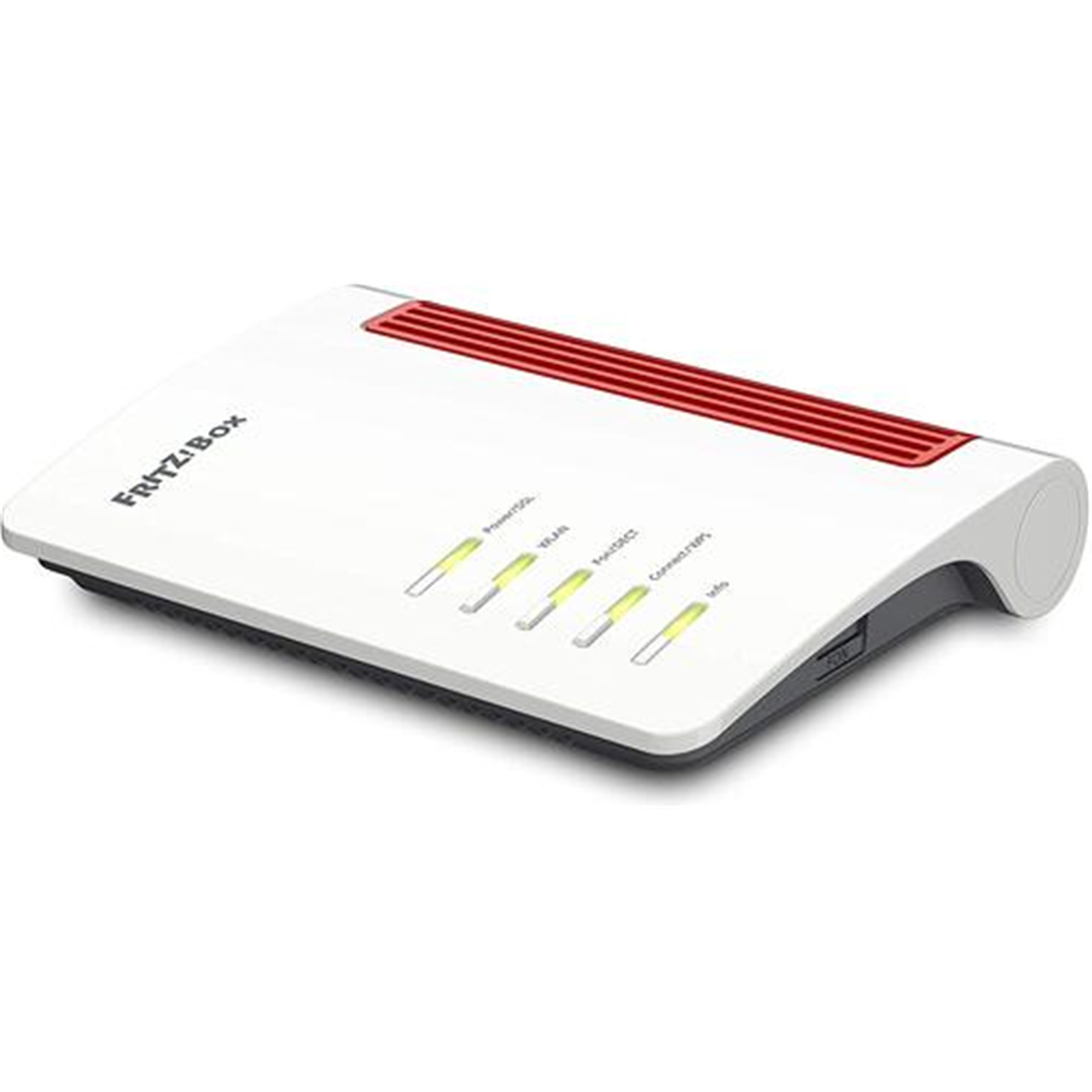
Step 1: Connect the router
1.1 Turn off the ONT
Turn off your Optical Network Terminal (ONT), also known as the fibre box.
1.2 Connect the ONT to your router
Connect an Ethernet cable from the active Ethernet port on your ONT specified by WorldNet to LAN 1 on your FRITZ!Box. The ONT port number can vary; use the port specified for your connection. On the FRITZ!Box, LAN 1 acts as the WAN port for this setup.
1.3 Turn on the ONT
Switch on the ONT and wait about 2 minutes for it to restart.
1.4 Turn on the router
Connect the power adapter to the FRITZ!Box and switch it on.
Step 2: Connect your device
Choose one of the following connection methods.
Option 1: Wired connection
Use another Ethernet cable to connect your computer to LAN 2, LAN 3 or LAN 4 on the FRITZ!Box. Leave LAN 1 connected to the ONT. Your computer needs an Ethernet port or a suitable adapter.
Option 2: Wireless connection
Find the Wi-Fi name (SSID) and Wi-Fi password on the router label, then connect your device to that network. If these have been changed, use your current Wi-Fi details.
Note: Keep your device connected to the router by Ethernet or Wi-Fi throughout setup.
Step 3: Set up the router
WorldNet Internet Settings
Internet Connection Type
Dynamic IP / DHCP / Automatic IP / IPoE
VLAN
Disabled / Off
Choose the matching option shown by your router.
3.1 Open the setup page
Open a web browser and enter http://fritz.box or http://192.168.178.1 in the address bar.
3.2 Log in to the router
Enter the FRITZ!Box password. The default router password is usually printed on the router label. If it has been changed, use the current router password.
3.3 Open the internet settings
Go to Internet > Account Information > Internet Connection.
3.4 Configure the WorldNet connection
Internet service provider: Other internet service provider
Name: WorldNet
Connected via: Connection to an external modem or router
Operating Mode: Establish own connection to the internet
Is account information required? No
Under Change Connection Settings, leave Use VLAN for internet access unticked. If IP settings are shown, select Obtain the IP address automatically (DHCP).
3.5 Enter your plan speeds
Under Connection Settings > Data Throughput, enter your plan’s download speed in Downstream and upload speed in Upstream. For fields labelled Mbit/s, use the following values:
| WorldNet Home Fibre plan | Downstream (Mbit/s) | Upstream (Mbit/s) |
|---|---|---|
| 100 / 20 Mbps | 100 | 20 |
| 500 / 100 Mbps | 500 | 100 |
| 920 / 450 Mbps | 920 | 450 |
Note: Use the speeds for your own plan. If your plan differs from those listed, check your WorldNet plan details. If your router shows kbit/s instead, multiply each value by 1,000; for example, 500 / 100 Mbps becomes Downstream 500000 and Upstream 100000.
Where to find these settings
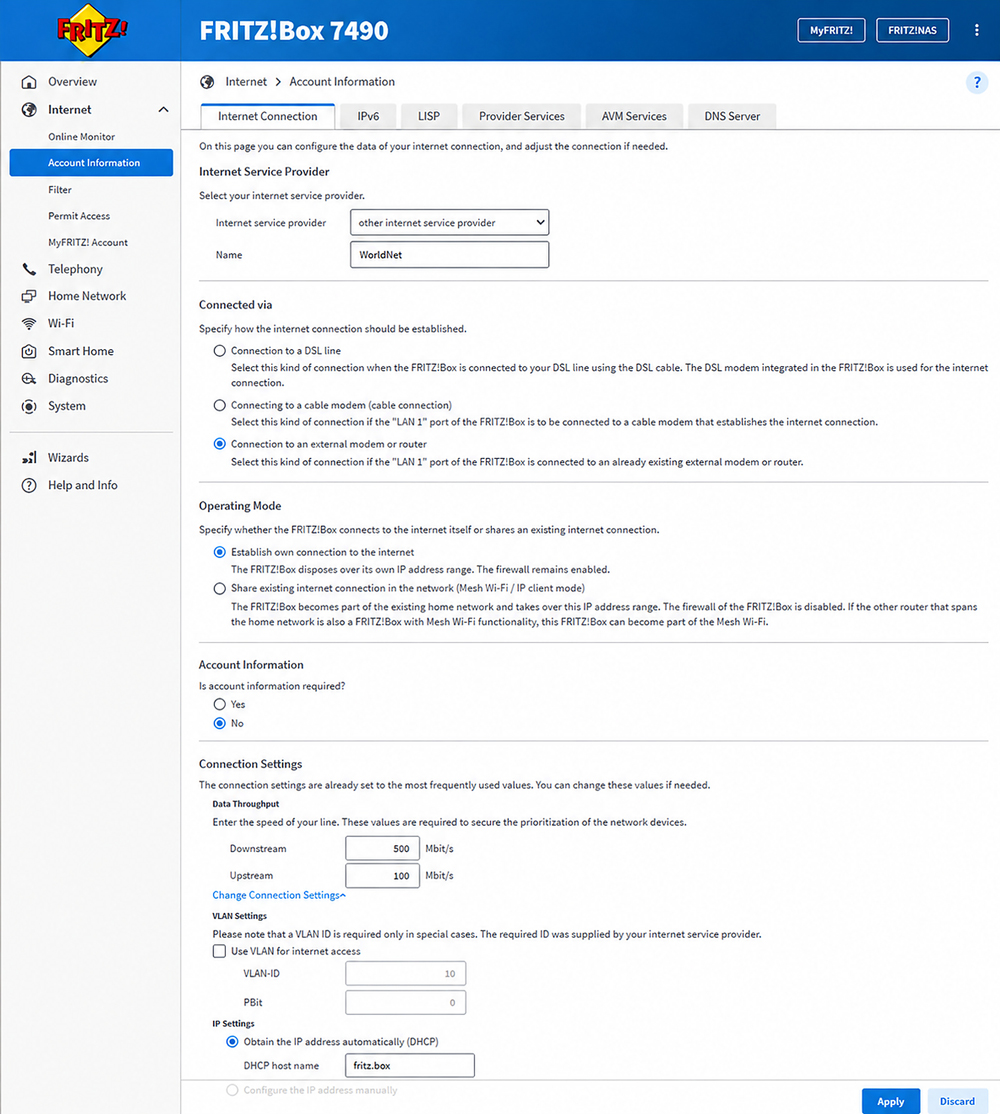
Note: This reference screenshot comes from the original WorldNet 7530 guide, but its header shows FRITZ!Box 7490. Your 7530 interface may look different. The example speeds shown are for the 500 / 100 Mbps plan; use your own plan’s values. The VLAN-ID field is inactive because Use VLAN for internet access is unticked.
3.6 Apply the settings
Select Apply to save your settings. Wait a few minutes for the router to establish the internet connection.
Step 4: Test your internet connection
Keep your device connected to the router by Ethernet or Wi-Fi, then open a website to check that the internet works.
Note: If you test on a phone, temporarily turn off mobile data so you can confirm the connection is coming through Wi-Fi rather than 4G/5G.