
Set up your Huawei DN8245X6 for WorldNet fibre using a web browser. Menu names may vary with the router’s firmware.
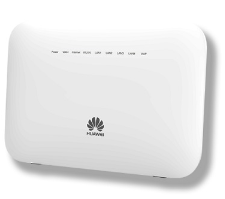
Step 1: Connect the router
1.1 Turn off the ONT
Turn off your Optical Network Terminal (ONT), also known as the fibre box.
1.2 Connect the ONT to your router
Connect an Ethernet cable from the active Ethernet port on your ONT specified by WorldNet to the WAN (Internet) port on your Huawei router. The ONT port number can vary; use the port specified for your connection.
1.3 Turn on the ONT
Switch on the ONT and wait about 2 minutes for it to restart.
1.4 Turn on the router
Connect the power adapter to the router and switch it on.
Step 2: Connect your device
Choose one of the following connection methods.
Option 1: Wired connection
Use another Ethernet cable to connect your computer to an available LAN port on the router. Your computer needs an Ethernet port or a suitable adapter.
Option 2: Wireless connection
Find the Wi-Fi name (SSID) and Wi-Fi password on the router label, then connect your device to that network. If these have been changed, use your current Wi-Fi details.
Note: Keep your device connected to the router by Ethernet or Wi-Fi throughout setup.
Step 3: Set up the router
WorldNet Internet Settings
Internet Connection Type
Dynamic IP / DHCP / Automatic IP / IPoE
VLAN
Disabled / Off
Choose the matching option shown by your router.
3.1 Open the setup page
Open a web browser and enter http://192.168.1.1 in the address bar. If the router’s address has been changed, use its current gateway address.
3.2 Log in to the router
Enter admin as the username and the router login password printed on the label underneath the router. If the label lists a different username, or you have changed the login details, use those details.
3.3 Open the WAN configuration
Open WAN Configuration or the internet connection settings page. If an Ethernet fibre internet connection already exists, select it to edit. Otherwise, select New to create one.
Note: Choose the Ethernet fibre connection, not an ADSL or VDSL connection. If your router does not allow you to add or edit WAN settings, contact WorldNet for help; some provider-supplied firmware restricts these settings.
3.4 Enter the basic connection settings
Under Basic Information, use the following settings:
Enable WAN: Ticked / On
Access Type: GE_uplink (Gigabit Ethernet)
Encapsulation Mode: IPoE
WAN Mode: Route WAN
Enable VLAN: Unticked / Off
If shown, set Protocol Type to IPv4 and Service Type to INTERNET.
3.5 Set the IPv4 options
Under IPv4 Information, set:
IP Acquisition Mode: DHCP
Enable NAT: Ticked / On
3.6 Apply the settings
Select Apply to save the settings. Wait a few minutes for the router to establish the internet connection.
Step 4: Test your internet connection
Keep your device connected to the router by Ethernet or Wi-Fi, then open a website to check that the internet works.
Note: If you test on a phone, temporarily turn off mobile data so you can confirm the connection is coming through Wi-Fi rather than 4G/5G.