
Step-1. Connect the router
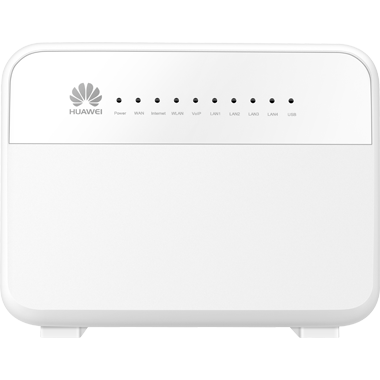
(1) Turn off the modem (ONT).
Note that the modem means the Optical Network Terminal (ONT) device, known as a fibre box.
(2) Connect the modem (ONT) to the router's WAN (Internet) port with an Ethernet cable.
(3) Turn on the modem (ONT), and then wait about 2 minutes for it to restart.
(4) Connect the power adapter to the router and turn on the router.
Step-2. Access the router
Option-1. Wired:
Connect your computer to the router using an Ethernet cable and connect it to one of the router's local area network (LAN) ports. The computer must have an Ethernet port.
Option-2. Wireless:
Find the SSID (Wi-Fi name) and Wi-Fi password printed on the label of the router.
Step-3. Setup the router
(1) Open a web browser (e.g. Chrome, Safari, Firefox, etc.) and enter the default gateway address: 192.168.1.1
Note that the device you use should be connected to the router via wired (LAN port) or wireless (Wi-Fi).
(2) On the login page, enter the default username and password:
Username: !!Huawei Password: @HuaweiHgw
If you do not know the login credentials, reset the router by pressing and holding the Reset button on the back of the router for about 10 seconds until the router restarts.
(3) Navigate to:
Internet > Internet Settings
Locate the profile containing ETH_VID , and then press the [Edit] Button.
Configure the settings as follows:
Connection Settings
- Enable Connection: Tick
- Connection Type: IP routing (IP)
- NAT Type: Full-cone NAT
IPv4 Information
- IP Protocol Version: IPv4
- IPv4 Addressing Type: DHCP
(4) Press the [Save] Button to save the configuration.
The router may restart after the settings are applied. Wait a few minutes for the restart to complete.