
| Method-2: Using a mobile app for router settings
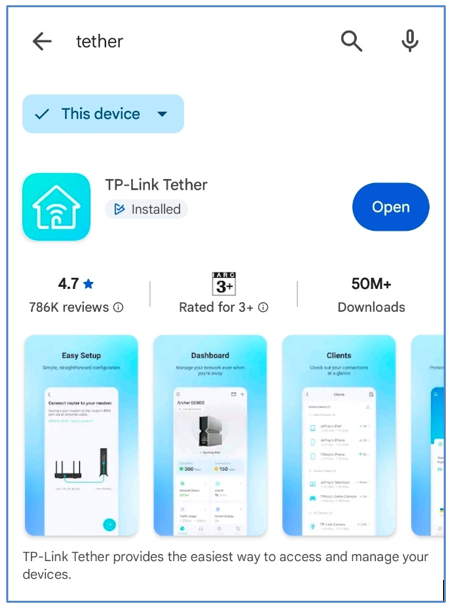
Step-1. Install [TP-Link Tether] on your mobile
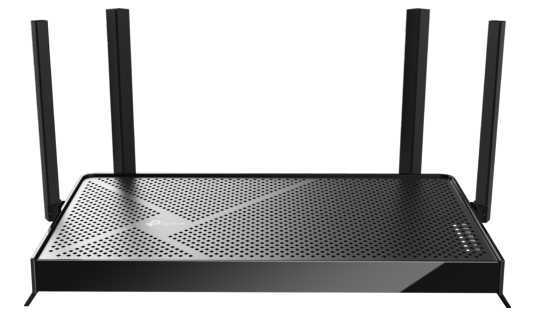
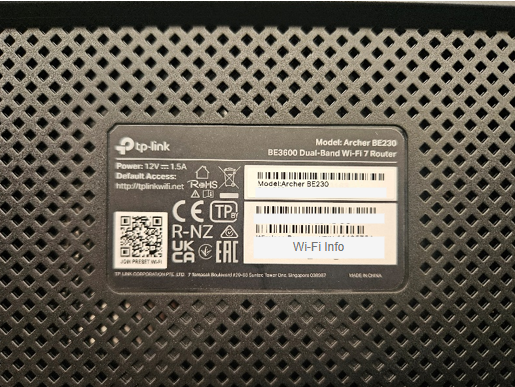
Step-2. Scan the QR code on the bottom of the router with your phone’s camera
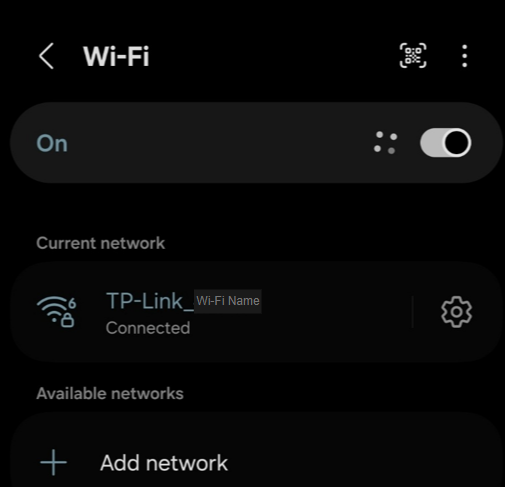
Step-3. Confirm that your phone is connected to Wi-Fi
Step-4. Open the Tether App
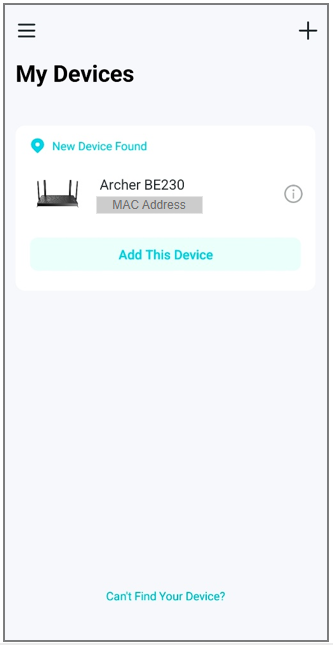
The router should be detected automatically. Tap Add This Device.
Step-5. Follow the setup process
5-1. Connect the router to the modem (ONT).
– Ensure the cable between the router and the ONT is securely plugged in.
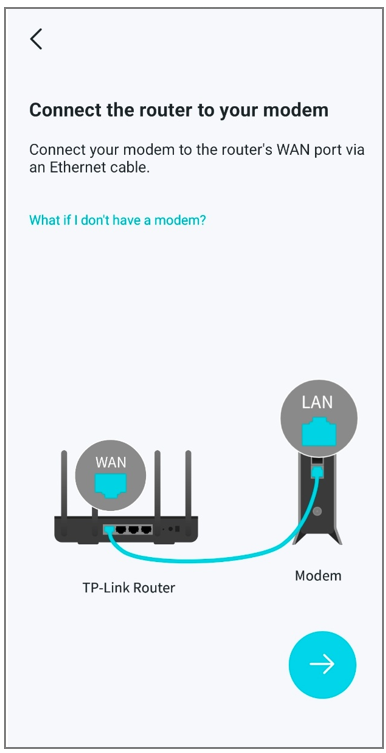
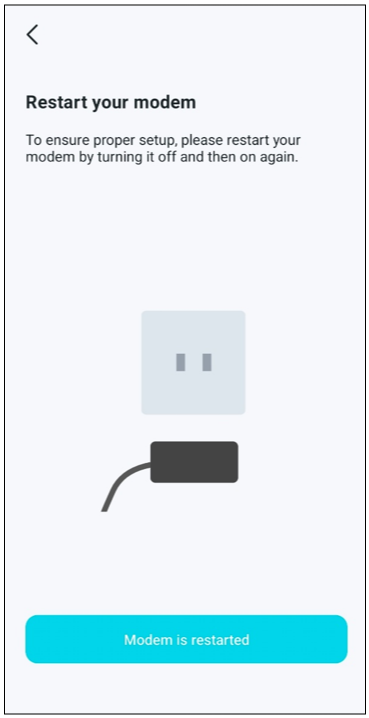
5-2. Restart your modem (ONT)
– Once it has finished rebooting, tap Modem is restarted.
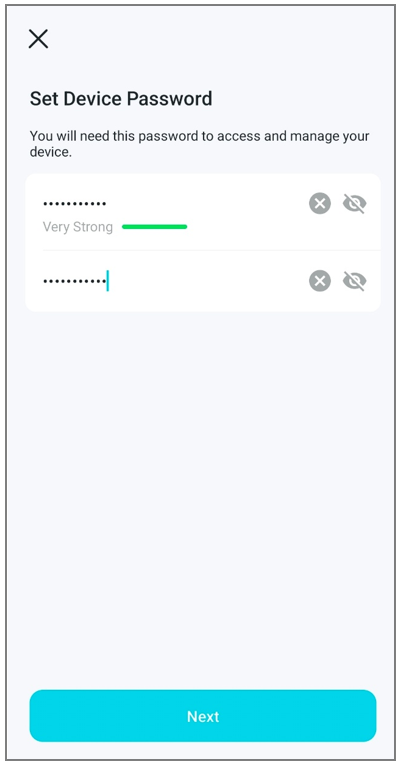
5-3. Create a device password
- You’ll need this password whenever you log in to manage the router settings.
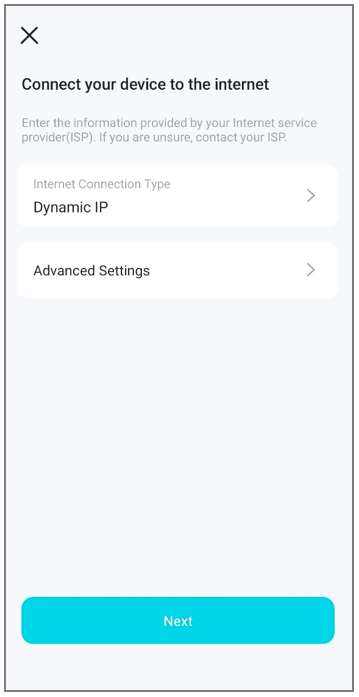
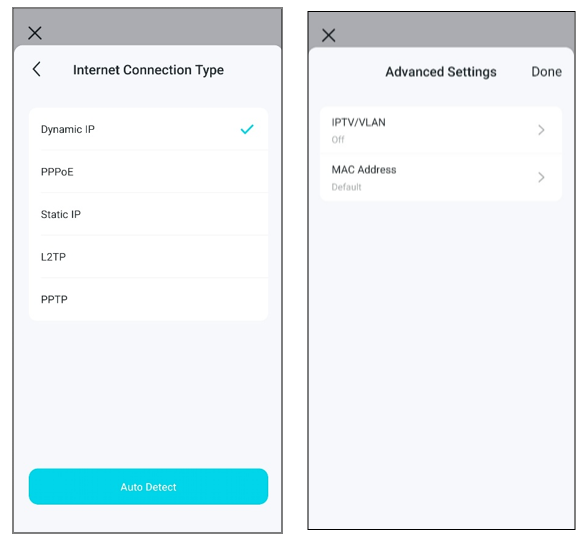
5-4. Connect your device to the internet
- Choose Dynamic IP as the internet connection type. You can skip the advanced settings for now.
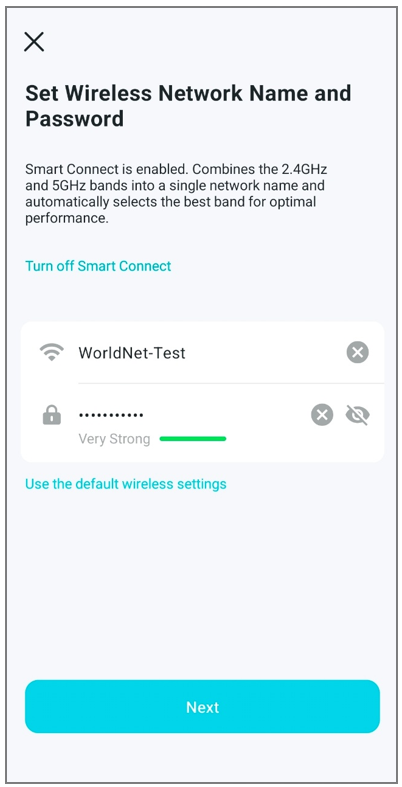
5-5. Set Wireless Network Name and Password
-Â Enter the Wi-Fi network name (SSID) and password.
-Â Smart Connect is turned on by default. Disable it if you prefer separate bands.
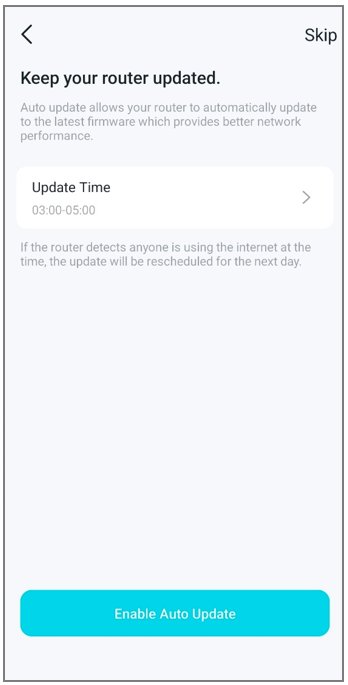
5-6. Configure automatic firmware updates on the router
-Â You may leave this off or switch it on. Enabling it is the recommended option.
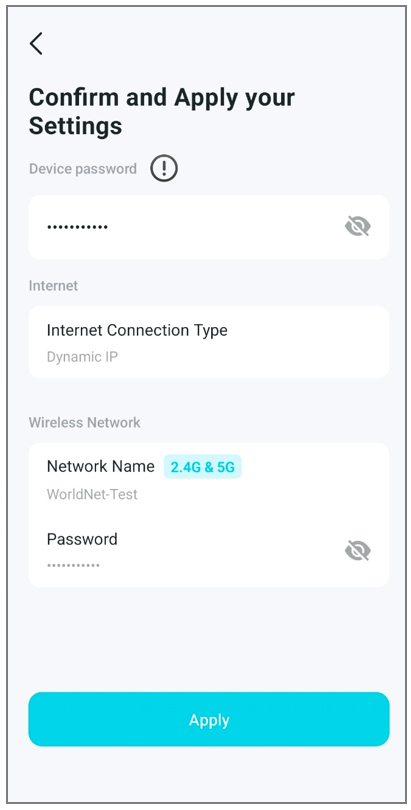
5-7. Confirm and apply the settings
-Â Check that all details are correct before proceeding.
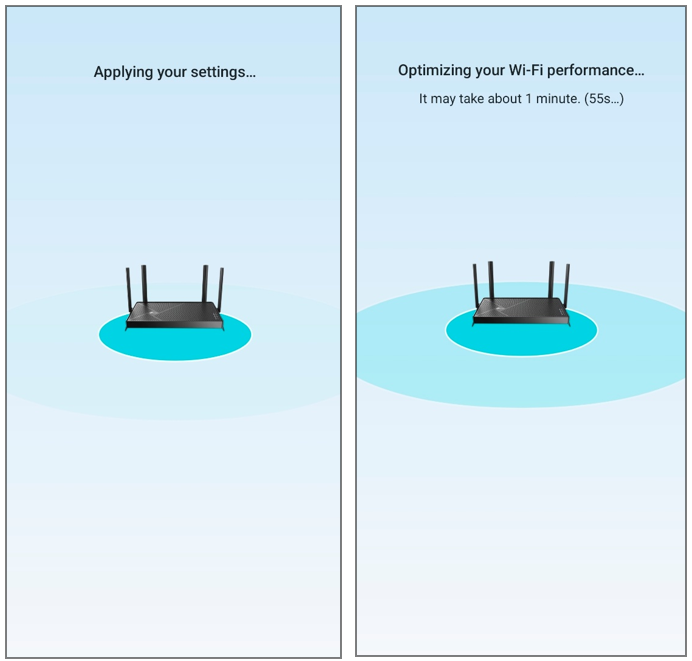
5-8. Apply the settings and optimise Wi-Fi performance
-Â The process usually takes about one minute to finish.
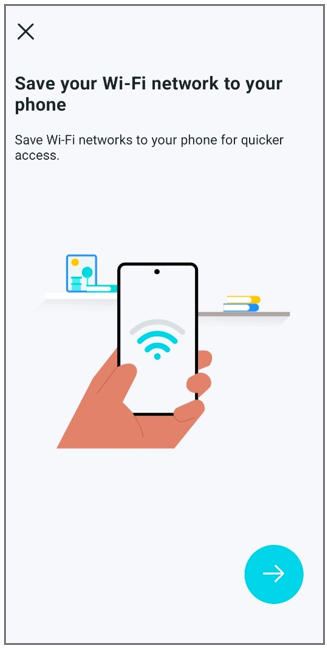
5-9. (Optional) Save the Wi-Fi network to your phone
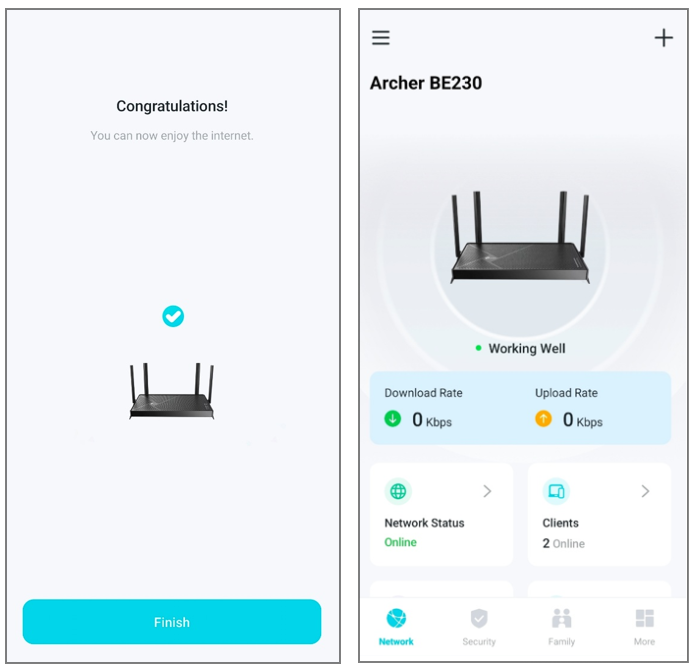
5-10. Finish
Step-4. Speed test
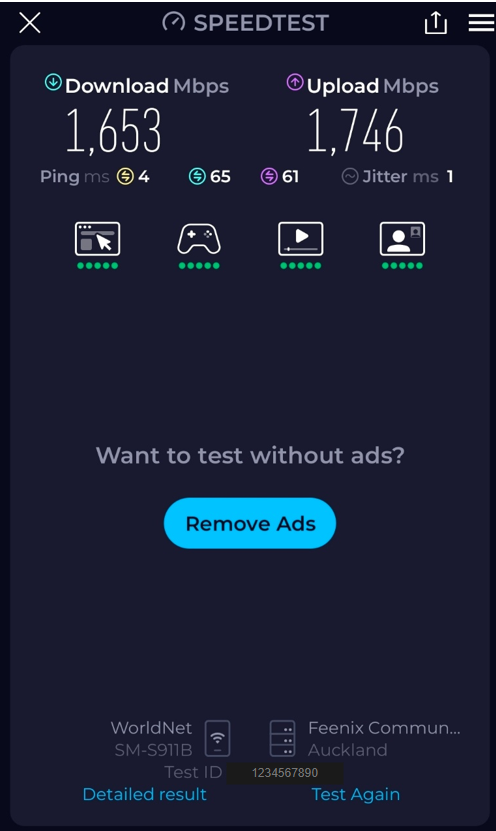
Wi-Fi performance may vary depending on the capabilities of the connected device.
Testing was conducted using a Galaxy S23.
For the most stable connection and maximum throughput, a wired Ethernet connection is recommended.