
| Method-1: Using a web browser for router settings
Step-1. Connect the router
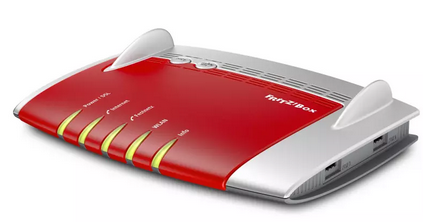
(1) Turn off the modem (ONT).
The modem means the Optical Network Terminal (ONT), also known as the fibre box.
(2) Connect the modem (ONT) to LAN port 1 (WAN port) on the router using an Ethernet cable.
(3) Turn on the modem (ONT), then wait about two minutes for it to restart.
(4) Connect the power adapter and turn on the Fritz!Box 7490.
Step-2. Access the router
Connect your computer to one of the router’s LAN ports using an Ethernet cable. The computer needs an Ethernet port or a compatible Ethernet adapter.
Step-3. Set up the router
(1) Open a web browser such as Chrome, Safari or Firefox, then go to http://fritz.box or http://192.168.178.1.
Your computer must remain connected to the router through a LAN port while completing these steps.
(2) Enter the router password.
The original guide lists admin as the default. If that does not work, use the FRITZ!Box password printed on the router label.
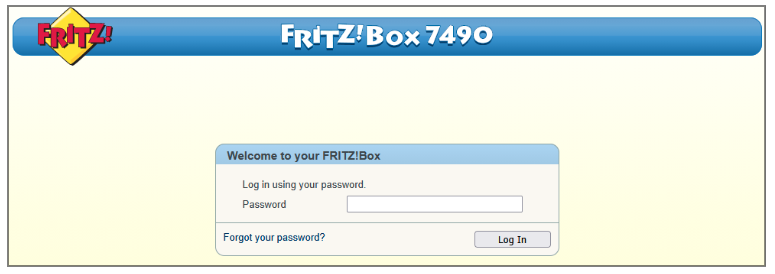
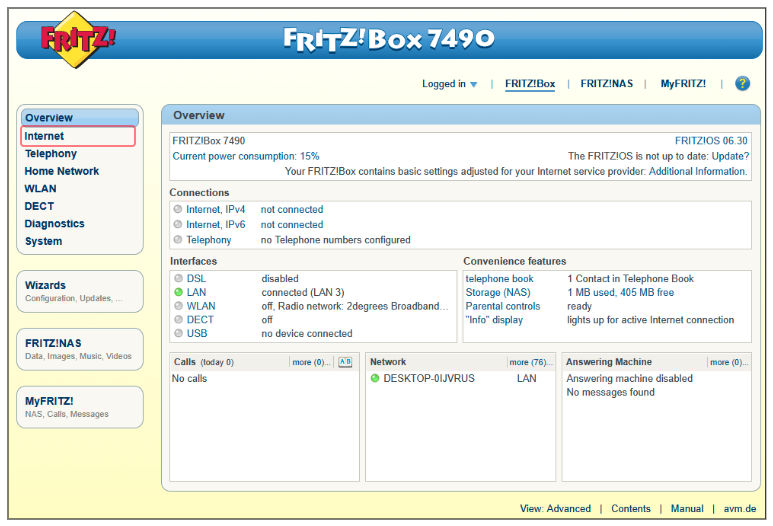
(3) Open Internet > Account Information.
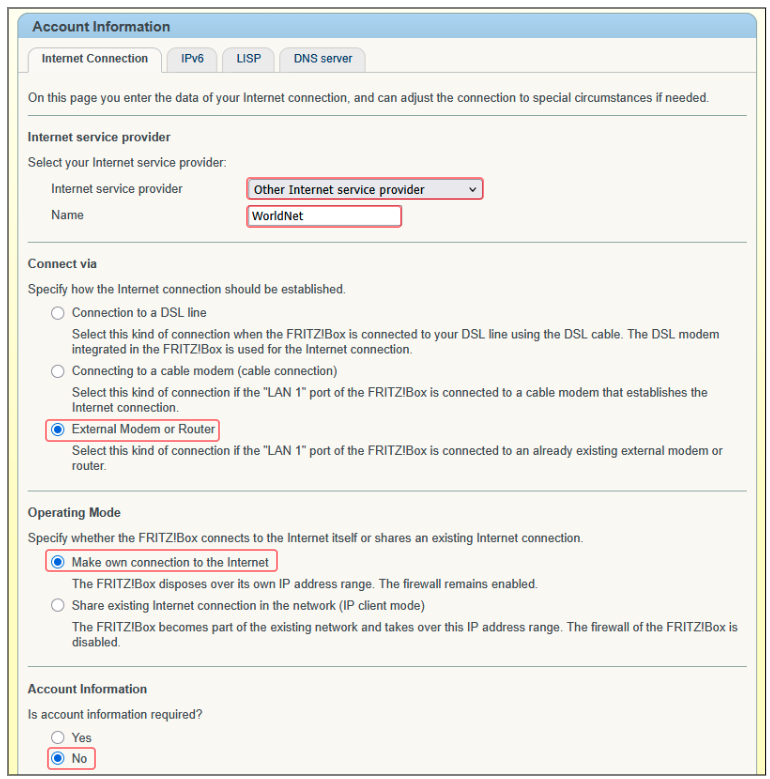
For Internet service provider, select Other Internet service provider and enter WorldNet as the name.
For Connect via, select External Modem or Router.
For Operating Mode, select Make own connection to the Internet.
For Account Information, select No.
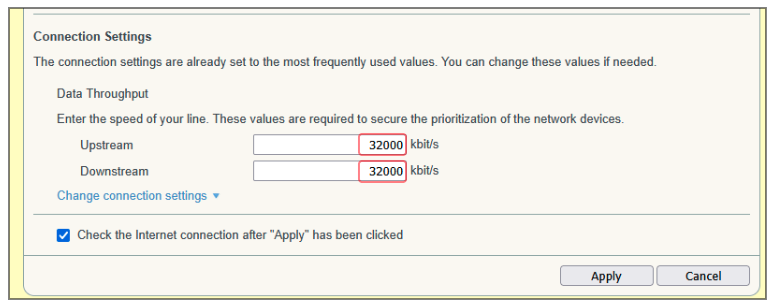
Under Connection Settings, enter 32000 kbit/s for both Upstream and Downstream, then select Apply.
These speed values come from the original WorldNet guide. If your plan is faster or you are unsure which values apply, check with WorldNet Support before saving.
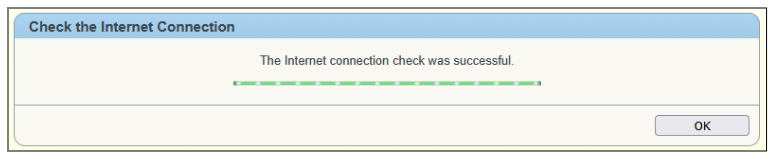
Wait for the Internet connection check to complete successfully.
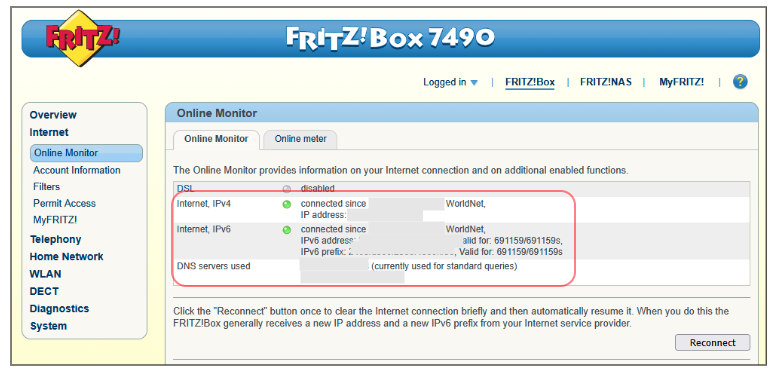
The Online Monitor should show an active WorldNet Internet connection.
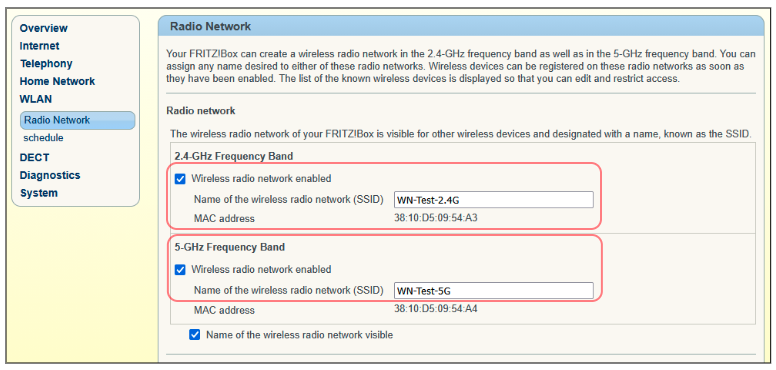
(4) Open WLAN > Radio Network.
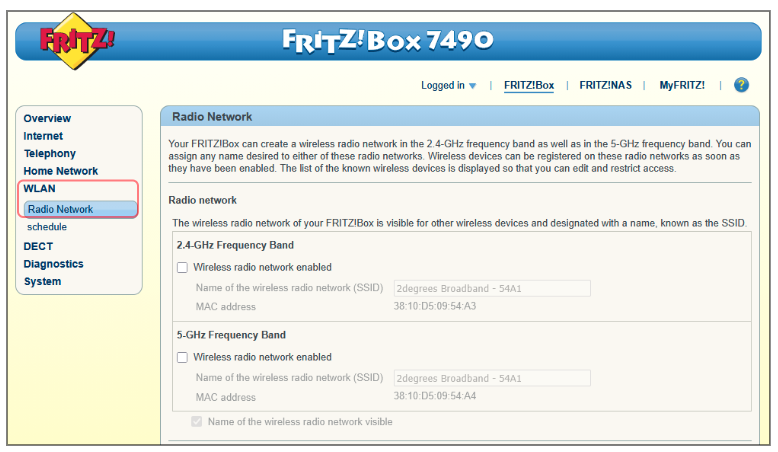
Enable the 2.4 GHz and 5 GHz frequency bands, then enter the Wi-Fi names you want to use.
The screenshots use WN-Test-2.4G and WN-Test-5G as examples. Choose your own network names.
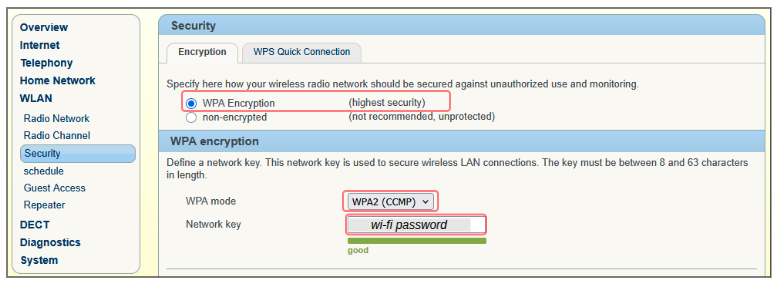
Open WLAN > Security, select WPA Encryption, choose WPA2 (CCMP), and enter the Network key you want to use as the Wi-Fi password.
Step-4. Complete the setup
Allow the Fritz!Box to apply the settings. Your connected devices may briefly disconnect while the router restarts its network connection.
Step-5. Test the Internet connection
Open a new browser tab and visit a website to confirm the connection is working. If it does not load, check the ONT and LAN 1 cabling, then review the settings above.